Cursor $20/month vs Google AI Studio free. The era of building full-stack apps for $0 has arrived, so I tried it
I tested Google AI Studio's free full-stack development feature and compared it with Cursor and Lovable. Here's a framework for choosing the right tool.
What you'll learn in this article
- The key point to grasp before reading the full article
- How the issue changes the way developers should work next
- Which follow-up article is worth opening next
Three years ago, I walked away from code completely. I was working in customer success. “I kind of want to write code again,” I’d think vaguely from time to time.
Then Cursor showed up and changed my life. I started paying $20/month and writing code alongside AI every day.
That said, $20/month adds up. $240 a year. About 36,000 yen in Japanese currency. When you’re at the “just want to try it” stage, that’s a pretty real barrier.
On March 19, 2026, Google dropped something wild. Google AI Studio’s “Build Mode.” An environment where you can build full-stack apps for $0. 27 days after launch, there were almost zero Japanese-language explainer articles on it.
I had to write this one.
I’ll share my honest take after actually using Build Mode. I’ll also compare it with Lovable and Bolt. Walk away with the material you need to decide “which tool should I pick?”
For 27 days, almost zero Japanese coverage
Build Mode was announced on Google’s official blog. The date: March 19, 2026. Review articles dropped in English-speaking regions almost immediately. Tech.co gave it a 4.3 out of 5. It was listed on Product Hunt too.
Yet in the Japanese-speaking world, near silence. For 27 days.
Why? I think there are two reasons.
First, the naming problem. When you hear “Google AI Studio,” doesn’t your mind jump to an API management tool? The image of “a place where AI developers test models” runs strong. The name makes it hard to imagine you can do full-stack development there.
Second, Cursor’s momentum was just too strong. In 2026’s AI coding market, Cursor was the main character. A Pragmatic Engineer survey captures this nicely. Out of 906 respondents, 46% picked Claude Code as their most-loved tool, and 19% named Cursor. With attention locked on these two giants, it’s no wonder Google’s tool flew under the radar.
That empty space, I think, is actually an opportunity.
The vibe coding market has reached $8.5B (roughly 1.3 trillion yen). According to GitHub Octoverse 2024, 41% of all code is already AI-generated. Collins Dictionary picked “vibe coding” as one of its 2026 words of the year. It’s reached a level you can fairly call a social phenomenon. Harvard Gazette has its eye on it too — they reported that “vibe coding offers insight into the future of AI.”
And Google just crashed that market with a “free tier.” Knowing this and continuing to pay $20/month without trying it felt like a waste to me.

The big picture of Google AI Studio “Build Mode”
At the core of Build Mode is a coding agent called Antigravity.
Most AI coding tools center on “completion,” right? They suggest options alongside your code as you type. GitHub Copilot’s and Cursor’s inline completions fall in this camp.
Antigravity’s approach is fundamentally different. It starts from a project-wide plan, auto-generates code spanning multiple files, and even runs tests inside the browser. When an error pops up, it identifies the cause itself and proposes a fix.
Your job is to check in at checkpoints. When it asks “OK to move forward in this direction?”, you just say go. It felt like having a star engineer sitting next to me, taking my direction.
According to the Firebase official blog, three frameworks are supported:
- React: the gold standard for frontends
- Next.js: a React-based full-stack setup
- Angular: Google’s own framework, aimed at larger-scale builds
Now for the main event. Build Mode’s real value lies in its Firebase integration.
What happens when you say “add a login feature” in natural language? The agent automatically detects and configures the necessary services.
- Firestore: the database. Where user info and post data get stored
- Firebase Authentication: the login feature. Supports Google sign-in, email auth, and more
- Firebase App Hosting: the deploy target. The server that publishes your app to the world
- Secret management: the mechanism that safely stores sensitive info like API keys
“What do I even do to set up a database?” you might ask. Or “How am I supposed to prep a server?” The agent shoulders all of that for you.
In Google’s official announcement, they said “hundreds of thousands of apps” have already been built internally. This isn’t an experimental product. It’s a technical foundation that’s already in real use.
What kinds of apps can you actually build? Here are a few examples:
- An internal time-tracking tool (login + data storage)
- A customer survey form (responses pile up in Firestore)
- A task board for your team (real-time sync supported)
- A personal blog or portfolio site
All things in the “not worth hiring a dedicated engineer for, but I’d want one for myself” category. For someone with a CS background like me, this hits the strike zone dead-on.
What I struggled with most during my CS days was exactly this: “environment setup.” I could write code. But I’d get stuck at the deployment stage. I lost three hours to server config more times than I can count. Build Mode can bring those three hours down to zero. This, seriously, is god-tier.

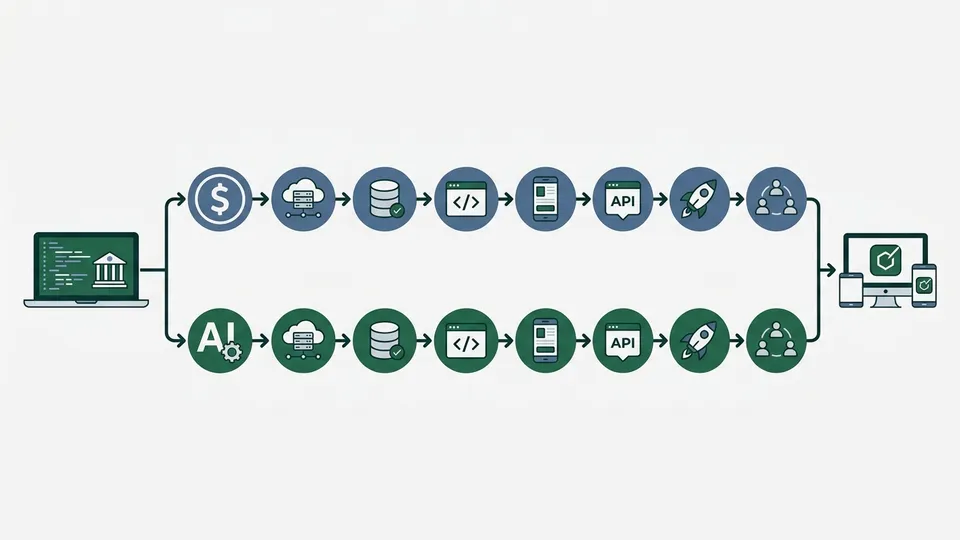
A real comparison: $0/month vs $20/month vs $25/month
When someone says “it’s free,” your first instinct is to be skeptical, right? There has to be a catch. I put together a price breakdown of the major tools.
| Tool | Free tier | Paid plan | Highlights |
|---|---|---|---|
| Google AI Studio | Yes (practical level) | Pay-as-you-go only when using the API | Firebase integration, full-stack support |
| Cursor | Hobby plan (limited) | Pro $20/mo, Pro+ $60/mo | VSCode-compatible, rich extensions |
| Lovable | Yes (credit-limited) | From $25/mo | Closer to no-code, great at UI generation |
| Bolt | Yes (credit-limited) | Price band similar to Lovable | Fully browser-based |
(Organized by the author with reference to NxCode’s pricing comparison)
What stands out is that “Google AI Studio’s free tier is at a practical level.” Cursor’s free version is heavily restricted. To use it for real, the Pro plan ($20/mo) is essentially required.
Lovable and Bolt use a credit system. Focused development can burn through your allotment in a single day. Extra credits cost more. I’ve heard stories of people noticing they’d already crossed $50/month before they realized it.
Google AI Studio’s free tier has a ceiling too. Reports mention hitting rate limits during 2–3 hours of focused use. For a “build a little at a time across a day” style, it runs without issues.
On the Firebase side, as long as you stay within the Spark plan (free tier) range, there’s no charge. For personal work tools and prototypes, you can wrap it up for $0.
One caveat. Handling large user volumes in production is a different story. You’ll need to switch to the Firebase Blaze plan (pay-as-you-go). The design philosophy is “free until you prototype, paid once you scale.”
Lay out the annual cost differences and it’s immediately obvious.
| Tool | Monthly | Annual cost | In yen ($1 = 150 yen) |
|---|---|---|---|
| Google AI Studio | $0 | $0 | 0 yen |
| Cursor Pro | $20 | $240 | About 36,000 yen |
| Lovable | $25 | $300 | About 45,000 yen |
36,000 yen could buy you a new keyboard. As a gadget lover, I’d rather route the money there. That said, it’s also true that Cursor’s stability is worth $20. Which is exactly why “knowing when to use which” matters.
Three strengths and two weaknesses I found in hands-on use
I’ll write up both the good and the bad honestly.
Strength 1: Truly zero environment setup
I typed in “build me a ToDo app.” Then added “include login and data storage.” Antigravity proposed a project structure. It wrote the code and auto-configured the Firebase integration. I could verify it worked in the in-browser preview.
What would the same thing look like in Cursor? First, project initialization. Then package installation. Then creating the Firebase config files. In my case, just the prep takes 30 minutes.
With Build Mode, 5 minutes. That 25-minute gap stacks up, every single time.
Let me lay out the before/after.
Before (with Cursor):
- Initialize the project with
npx create-next-app(2 min) - Install the Firebase SDK (3 min)
- Generate config files with
firebase init(5 min) - Write the initial Firestore/Auth setup code (10 min)
- Create the environment variable file (5 min)
- Test and debug (10 min)
After (with Build Mode):
- Type “ToDo app. With login and data storage” (1 min)
- Review Antigravity’s proposal and click OK (2 min)
- Verify behavior in the preview (2 min)
The steps drop from six to three. Time goes from 35 minutes to 5. That gap really pays off in every weekly prototype.
Strength 2: Smart error self-correction
Post-generation errors are a daily occurrence. Antigravity reads the errors itself. It tries a fix and verifies the result. The only point where a human steps in is the “OK with this fix?” confirmation.
For example, when I got a permission error on a Firestore read/write. Antigravity detected that the security rules were missing some config. It proposed an automatic fix to firestore.rules.
Cursor also has error-fix suggestions. But for fixes spanning multiple files, I felt Build Mode is a step ahead. Being able to fix the frontend component and the backend rules at the same time is a big deal.
Let me share a gotcha upfront. Antigravity’s fixes can sometimes miss the mark. If the same error shows up three times in a row, it’s faster to investigate the root cause yourself. I lost three hours learning this lesson. May you breeze past it in three minutes.
Strength 3: One-stop shop all the way to deploy
“I built it but can’t ship it” is a classic vibe-coder trap. Build Mode deploys to Firebase App Hosting with a single button. A URL is issued, and you can show someone the result right away.
“Just show me something that runs” is my development philosophy. Build Mode lines up perfectly with that ethos.
Back in my CS days, showing a working prototype was the most effective move when pitching to customers. One running screen beats ten slides. Had this environment existed back then, how many prototypes would I have shipped? Thinking about it stings a little.
Weakness 1: Stability issues
This part I have to write honestly. There are reports of sessions suddenly dropping with “Internal Error.” The Register’s article mentioned a case where the tool was unusable for over 10 hours right after an update.
I’ve never experienced this degree of instability with Cursor.
If an error crashes you mid-work, your code could disappear too. Copy your code somewhere often as a countermeasure. If you’re comfortable with Git, periodic commits are the best move.
Weakness 2: No MCP support, and the multi-repo wall
MCP (Model Context Protocol) is the mechanism that lets AI tools work with each other. With Cursor, you can hook up external databases and APIs through MCP.
Build Mode doesn’t support it as of now. If you use it as “Google AI Studio all on its own,” it doesn’t matter. But for someone wanting to wire it into an existing workflow, it’s a constraint.
It also doesn’t support multiple repositories. You’re locked into 1 project = 1 session. That makes it a poor fit for large-scale development connecting multiple services. Treating it strictly as a tool for personal work tools and prototypes is the right call.

A framework for choosing between free and paid
“So which one should I pick?” doesn’t have a single right answer. But you can lay out the axes for the decision. What I always told customers during my CS days: “There’s no right answer. But there is a choice that suits you.” Tool selection works the same way.
Google AI Studio is a fit for:
- People trying vibe coding for the first time. $0 = zero risk
- People who want to build small apps like prototypes and work tools
- People who don’t want to spend time on environment setup or deployment
- People with no resistance to using Firebase
Cursor is a fit for:
- People who use VSCode daily. Their extensions carry over as-is
- People who work on multiple projects in parallel
- People who want to connect to external tools via MCP
- People who place a premium on session stability
Use both (this is my recommendation):
I don’t think you need to pick just one.
Here’s how I split them. When testing a new idea, Google AI Studio. Prototype fast at $0. If it shows promise, move it to Cursor and go into real development.
As someone who once left because I felt I couldn’t keep up with pro engineers, just having more options is a gift.
One more gotcha. When you carry code generated in Build Mode over to Cursor, there’s something to watch for. Firebase-related config files can be missing and cause errors. Manually copy over .firebaserc and firebase.json. It’s a 3-minute job.
Wrap-up
Google AI Studio’s Build Mode brought the entry price for vibe coding to $0. It looks understated, but this is a huge deal.
Starting with vibe coding has always required a $20/month subscription as the cost of entry. Plenty of people probably hesitated, thinking “Pay up just to try it?” Build Mode tore down that wall.
Three points to wrap up:
- Zero setup, one-stop deploy. With Firebase integration, “build → ship” closes the loop inside the browser alone
- Stability still has issues. Too early for serious development. Prototype use is the realistic pick
- The best move is to combine it with Cursor. Prototype with Build Mode, build for real with Cursor. This combo has the best cost-to-value ratio
As I wrote in the recent Vibe & Verify article, verifying AI-generated code is a non-negotiable process. Apps built in Build Mode are no exception. Don’t stop at “it works” — please remember “check that it works after it works.”
I’m someone who once stepped away from code. I left thinking, “I can’t compete with the pros.” AI came along, and I came back. And now, the entry point has gone free.
“I’d like to try writing code, but not enough to spend money on it.” I really get that feeling. I used to feel exactly the same.
Wait, you’re still doing it by hand? You can start for $0 now.
Open Build Mode and type what you want to build in your own language. Five minutes later, you should see a working preview. That moment of “wait, is this actually running?” — I really hope you get to experience it.
That “a star engineer has taken up residence in my workspace” feeling I experienced three years ago is now available for $0. Let’s just build something that runs.

正直、一度エンジニアは諦めました。新卒で入った開発会社でバケモノみたいに優秀な人たちに囲まれて、「あ、私はこっち側じゃないな」って悟ったんです。その後はカスタマーサクセスに転向して10年。でもCursorとClaude Codeに出会って、全部変わりました。完璧なコードじゃなくていい。自分の仕事を自分で楽にするコードが書ければ、それでいいんですよ。週末はサウナで整いながら次に作るツールのこと考えてます。